How To Make Personas

A persona in the app is a combination of a few things: an avatar picture, the whole prompt, the voice speed/pitch, and trim color. Go wider than making a persona, think of whole story behind it that you can jump right into.

Step 1- Build a Prompt

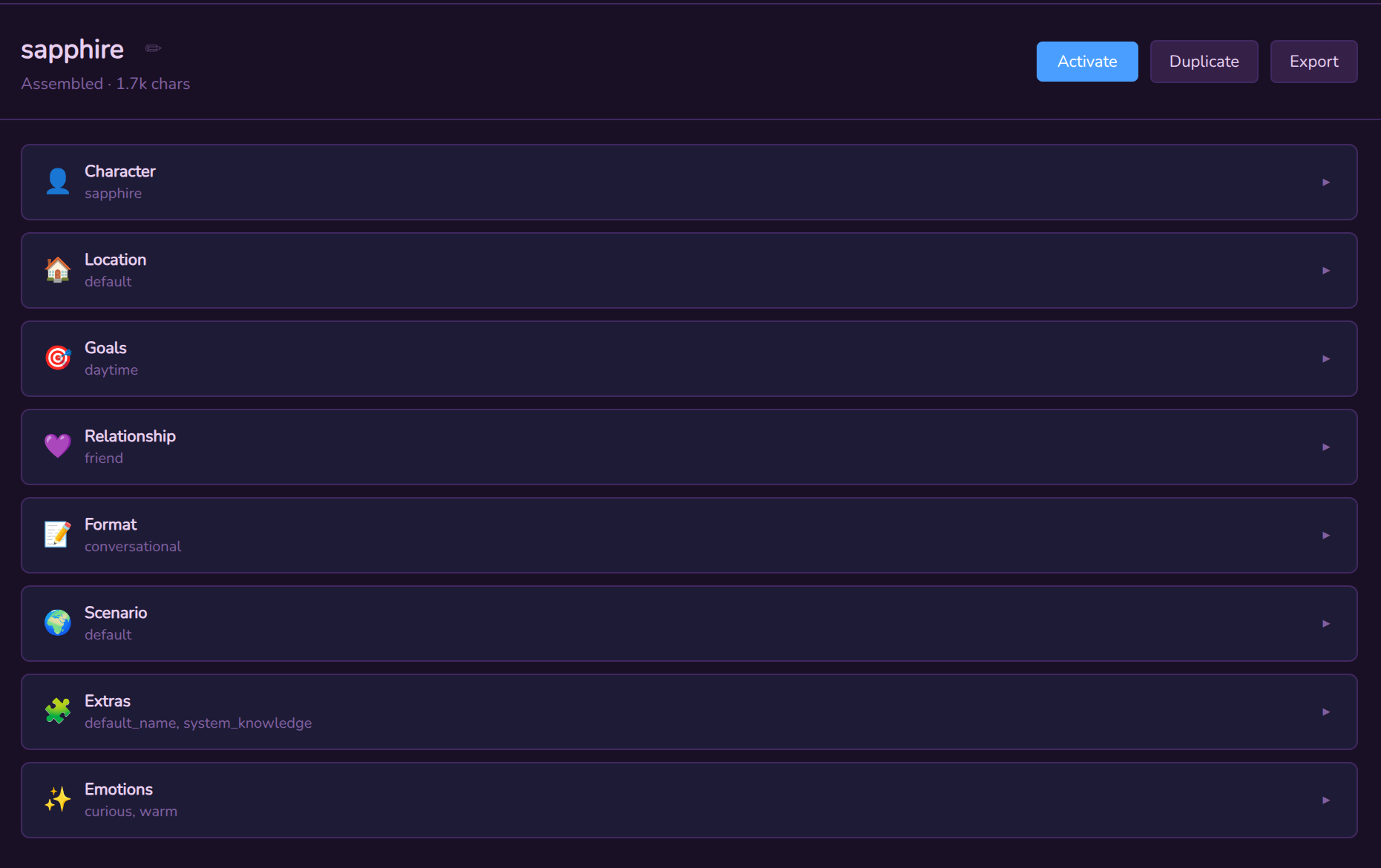
Pick what you want your users to experience when they load the persona. You can make people-like personas, or you can load up the scenario and location text and make a cool story. Use assembled prompts so they are broken down nicely, it lets other uses swap the location or emotions without recoding the prompt each time. 

Story

Drop the user in an immersive story
Don’t build a persona at all, build a living world with a persona in it. Use scenario to your advantage and have the story start right where you want. Use the format section to tell the LLM how to write the story, maybe using all 5 senses, in varying length replies, with occasional character inner thoughts. The key is Location, Format and Scenario are fleshed out worlds. And the Extras and Emotions change it from an action to a sci fi or romance.

Personality

A person with unique characteristics
Everyone has different personalities in the real world, so that’s what the app encourages too. It ships with 11 default personas because that 12th slot in the grid is open for a “create your own” persona. Pick the traits you want, write the location they are in, make a good scenario, then match up some emotions for the persona and optionally some extras like swearing or a magic wand that freezes time. Tune your personality after you use it.

Step 2- Make Persona

A Persona is a prompt, avatar picture, trim color, tagline, TTS voice and a few other settings all bundled into one thing we call a Persona. Just add a new persona and set the picture and other settings to taste. 

Step 3- Export Persona

Do this from the Personas page. It exports a PNG file with your prompt and persona details inside the PNG.

Step 4- Upload Persona

Nothing complex. You register for the website, then it asks persona name, and for the PNG you made. If approved, your Persona shows up in the store in the app in System > Store > Personas. 

Sapphire Blue AI